
Markdown, DOCX, or PDF? Export Formats for Your Recognition Results, Explained
Markdown, DOCX, or PDF? How each export format handles images, tables, and equations, and which one fits your next document.
Recognition is only half the job; the result counts once it lands in the software you actually use. Click Export at the bottom of the result page to export three formats: Markdown, DOCX, and PDF. A copy button next to it puts the whole result on your clipboard as Markdown text.
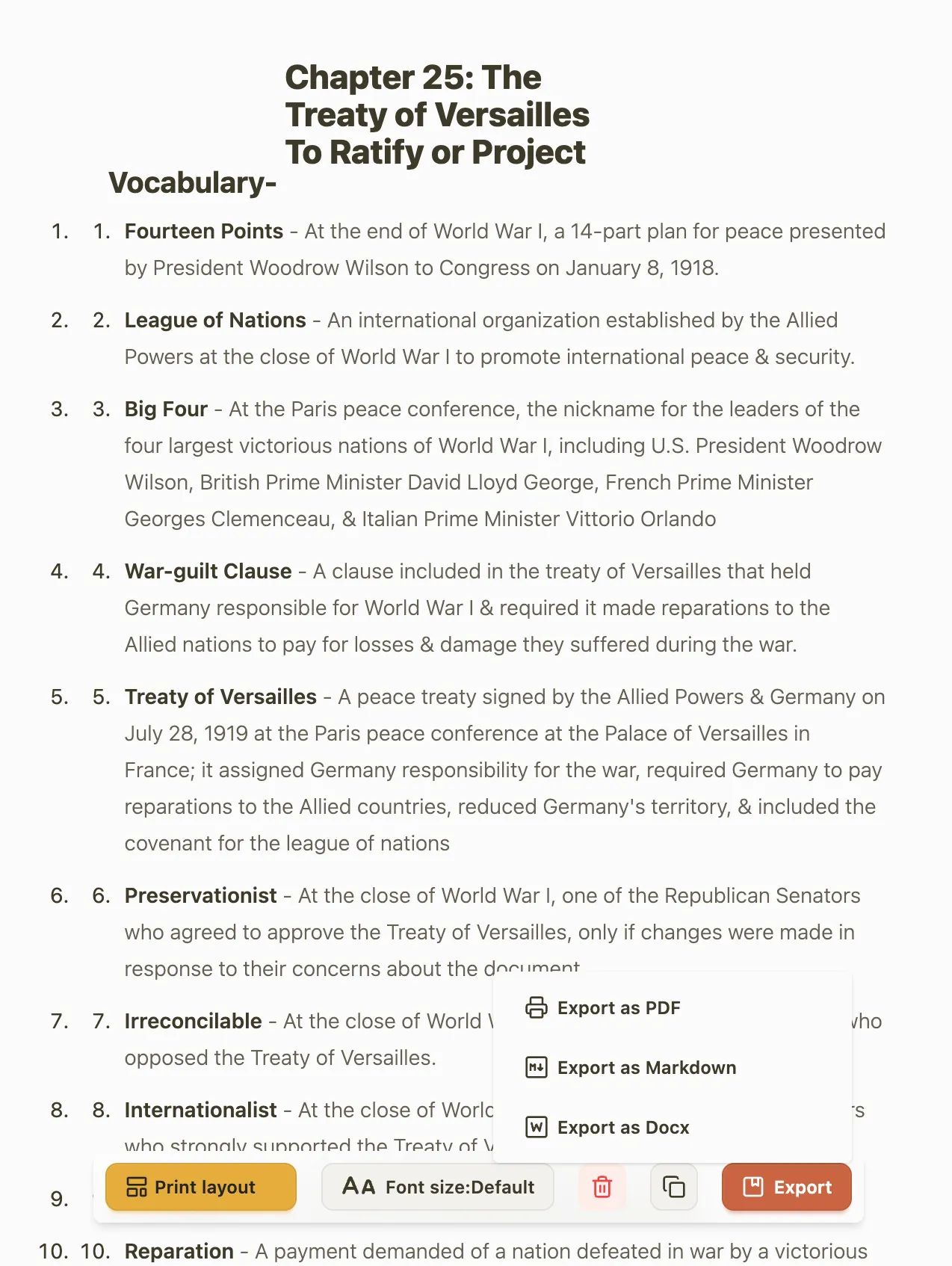
All three formats come from the same recognition result; what differs is how images, equations, and layout are handled.
Markdown: for notes apps and further editing
Exporting Markdown gives you a zip archive containing the .md file and image files:
- Multi-page documents merge into one
.md, with pages separated by---dividers; - Images are stored separately, with page numbers in their filenames, and referenced by relative links in the
.md; - Equations keep their LaTeX syntax and render normally in editors that support them.
Good for: importing into notes apps like Obsidian or Notion for further organizing; publishing on a blog; version control; any scenario where you want to batch-process things with scripts.
One habit worth building: if you move the .md file after unzipping, take the image files with it, or the relative links will break.
DOCX: for Word and formal documents
Exporting DOCX gives you a .docx file that opens straight in Word:
- Images are embedded in the document — nothing to save separately;
- Equations become native Word equations and stay editable in the Word equation editor;
- Heading levels are kept, so the navigation pane jumps straight to them.
Good for: adjusting the formatting in Word; sending to a teacher, colleague, or client; any scenario that calls for a formal printed document. If the recipient does not have a Markdown editor, send DOCX.
PDF: for printing and final copies
Exporting PDF opens your browser print dialog; choose “Save as PDF” to save. It has one special trait: it follows the current layout mode.
- Exported in Normal layout: content flows across A4 pages, for continuous reading;
- Exported in Print layout: each page is rebuilt as the original, for that “looks like a scan” effect.
So if you want to keep the original layout, switch to Print layout before exporting. For how to choose, see how to choose a layout.
Good for: printing, sharing a final version, archiving — anywhere the content is settled and just needs to read well.
How to choose
| Scenario | Pick |
|---|---|
| Import into a notes app and keep editing | Markdown |
| Edit in Word, send for others to read | DOCX |
| Print, finalize, archive | |
| Grab a passage quickly to paste elsewhere | Copy button |
Two common pitfalls to close on: in the Markdown zip, keep the images together with the .md file or the links will break; and for a PDF that keeps the original layout, switch to Print layout before you export. The complete workflow is in recognize and review in three steps.
Start converting
Upload your first file and get 5 free pages: Open Handwriting to OCR.