
How to Convert Handwriting to Text: Upload, Review, and Export
Convert handwriting to text: upload a photo or PDF, review the recognized result against the original, then export to Markdown, DOCX, or PDF. Includes FAQs.
Handwriting to OCR turns handwritten notes, photos, and scanned documents into editable text. It recognizes text, tables, equations, and images, lets you check each block against the original, and exports the result as Markdown, DOCX, or PDF. New accounts get 5 free pages, no card required. It runs in your browser on a computer or phone, with nothing to install.
The flow is the same for a student organizing lecture notes, a journalist transcribing interviews, or anyone preserving old family letters. This guide walks through one complete run: preparing the file, recognizing it, checking the result, choosing a layout, and exporting.
Before you start
Handwriting to OCR accepts PDF and common image formats: JPG, JPEG, PNG, AVIF, TIFF, GIF, HEIC, HEIF, BMP, and WEBP. Each file can be up to 50MB, and you can upload up to 10 at a time. Photos taken on your phone can go straight in.
When you photograph or scan a page, check four things:
- Even light, with no shadows or glare.
- Shoot straight on, keep all four corners in frame, and let the page fill as much of the image as possible.
- Keep the handwriting as clear as you can. Blurry or dark photos directly affect the result.
- For multi-page documents, upload a PDF instead of photographing each page.
First-time users sign in with a Google account. New accounts get 5 credits, which cover 5 pages: five images or one 5-page PDF.
Recognize a file in three steps
1. Upload
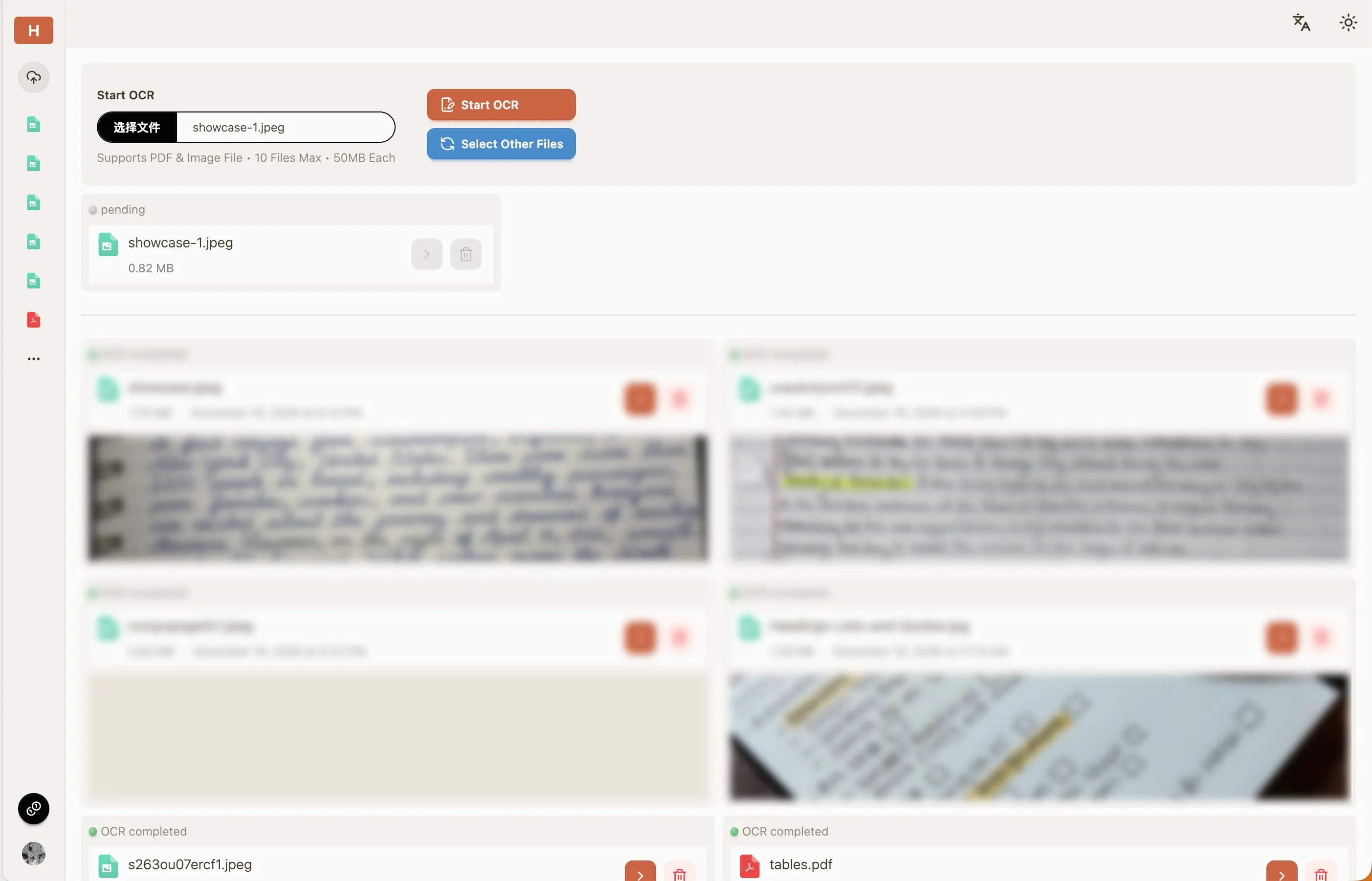
Open the OCR page and click Upload Files. Choose your files, then click Start OCR. You can select several files at once.
2. Wait
Each file shows its upload, recognition, and completion status. Most files finish in 10 seconds to 1 minute, depending on size and page count. Recognition is billed by page: one image counts as 1 page, and a PDF is charged by its actual page count. If your balance is too low, the page prompts you to top up.
3. Open the result
When recognition finishes, click the arrow on the right of the file card to open the result. You can also reopen it later from the record list.
Check the result against the original
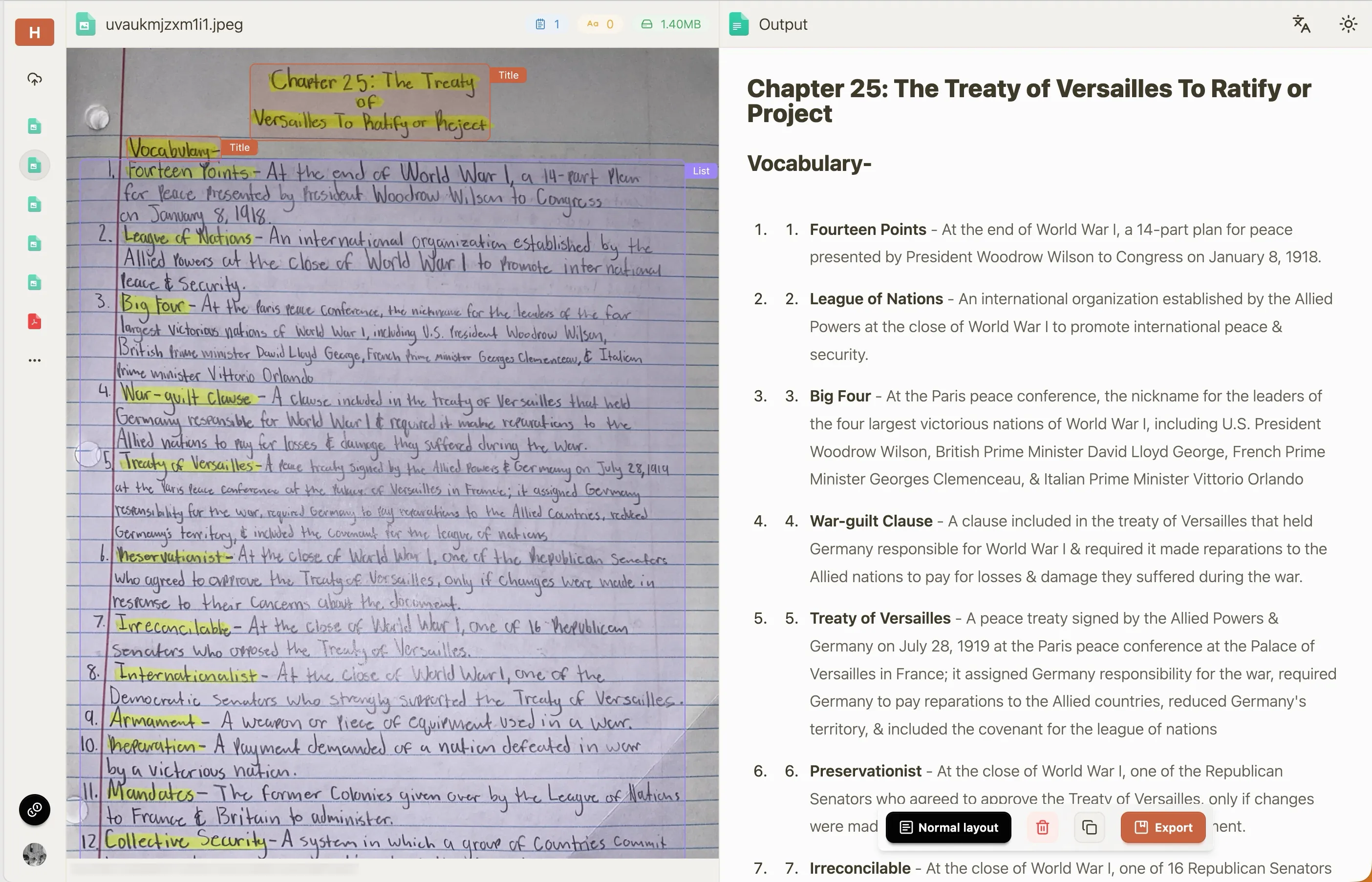
On desktop (window width 1024px or more), the view splits in two: the original on the left and the result on the right. Recognized text and images on the original are marked with highlighted blocks, color-coded by block type. Click a block and the result scrolls to the matching content.
The toolbar at the bottom of the result page has a copy button, Export, a layout switch (Normal layout / Print layout), font size (Print layout only), and delete. On a phone, there is no split view. The result fills the screen, and the image button in the bottom-right corner opens the original. Highlights are desktop-only.
Choose Normal layout or Print layout
| Layout | Best for | What the result looks like |
|---|---|---|
| Normal layout | Most documents, everyday reading, copying, and editing | Flowing text in reading order |
| Print layout | Equations, tables, and complex pages, or a PDF that keeps the original layout | Content placed where it sits on the original page, closer to the scan |
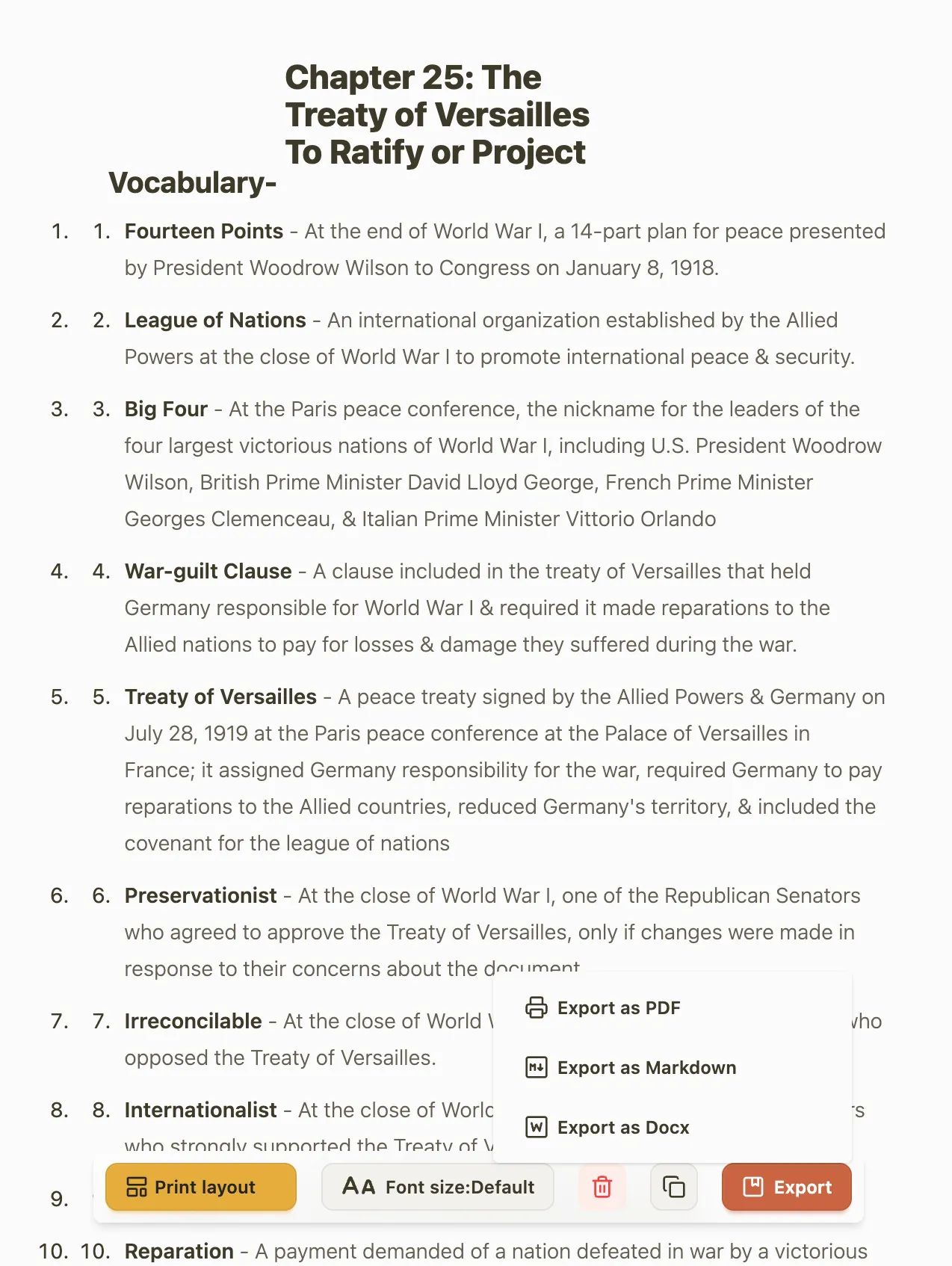
Most files belong in Normal layout. If equations, columns, or table positions look wrong, switch to Print layout. Print layout also lets you adjust the font size.
Export: Markdown, DOCX, PDF
| Format | Who it is for, and what you get |
|---|---|
| Markdown | For editing in a notes app. Images are stored separately and packed with the .md file into a zip; equations stay in Markdown syntax and the layout is flowing. |
| DOCX | For editing in Word or sending to a colleague. Images are embedded; equations become Word equations, and heading levels are kept. |
| For printing or sharing a final copy. Images are embedded; Print layout keeps the original page arrangement. |
Click Export at the bottom of the result page, then choose Export as Markdown, Export as Docx, or Export as PDF.
Markdown downloads as a zip file. Unzip it to get the .md file and its images; keep them together when you move the files so the image links do not break. DOCX opens directly in Word. PDF opens your browser’s print dialog, where you choose Save as PDF.
Markdown and DOCX always export the flowing Normal layout structure; PDF follows the current layout. To keep the original page arrangement, switch to Print layout before exporting the PDF.
What Handwriting to OCR can recognize
- Joined-up writing, cursive, and shorthand: quick notes, linked letters, and marginal comments.
- Handwriting over printed text: additions on forms, exam papers, and contracts.
- Headings, lists, quotes, headers, and footers: recognized as separate blocks, with their hierarchy kept in the export.
- Tables: rebuilt row by row and column by column. Very complex merged cells may still need a small fix after export.
- Equations: handwritten equations, fractions, exponents, and square roots are rendered as math, and become Word equations in DOCX.
- Images: logos, illustrations, and diagrams are exported as images.
- Mixed languages: a page that switches between languages is recognized in one pass.
Accuracy depends on how clear the writing is and on photo quality. Neat handwriting usually comes out better than a rushed scrawl. When a line is hard to read, check it against the original with the highlighted blocks on desktop.
Languages
Handwriting to OCR supports 170 languages, including Chinese, English, Japanese, Korean, Arabic, Russian, Vietnamese, and Thai. A single page can mix several languages.
Credits and refunds
New accounts get 5 credits, and 1 credit covers 1 page. One image counts as 1 page; a PDF is charged by its actual page count.
| Pack | Credits | Price |
|---|---|---|
| Lite | 100 | $9.90 |
| Pro | 1,200 | $19.90 |
| Ultra | 8,000 | $99.00 |
Pricing is pay-as-you-go, with no monthly fee. When your credits run out, top up on the buy credits page. Unused credits can be refunded in full within 14 days of purchase; see the refund policy for the full terms.
Privacy and file deletion
Files travel over HTTPS and are stored with encryption at rest on cloud infrastructure. Recognition is handled by a third-party OCR provider. Your files are not sold or used for advertising. When you delete an OCR record, its original file, result, and related data are deleted with it.
Frequently asked questions
Can I use a photo from my phone?
Yes. JPG, PNG, HEIC, and other common formats are supported, so you can upload a photo straight from your camera roll. Even light and the full page in frame give a steadier result.
How are credits counted for a PDF?
By the PDF’s actual page count: 1 page costs 1 credit. One image counts as 1 page. Before uploading, the app checks your balance against the page count.
Why does Markdown download as a zip?
Because the images are stored separately. The zip contains the .md file and its image files; unzip it and open the .md file in any Markdown editor.
Why did exporting a PDF open the print dialog?
The browser generates the PDF. Choose Save as PDF in the print dialog. To keep the original page arrangement, switch to Print layout first.
Why are there no highlights on my phone?
The split view and highlighted blocks are desktop features. On a phone, the result fills the screen; tap the image button in the bottom-right corner to view the original and check it side by side.
What if the recognition is wrong?
First check whether the writing was unclear, the photo was blurry, or the page was too complex. You can fix small errors in the exported file. If a whole page comes out badly, upload a sharper, straighter photo and run it again. A new run is charged by page.
Can I extract text from an image or a scanned page?
Yes. Handwriting to OCR accepts JPG, PNG, HEIC, and other common image formats, as well as scanned PDFs. Upload the file, and the recognized text, including handwriting, is ready to review and export.
Can I turn a scanned PDF into editable text?
Yes. Upload the PDF (up to 50 MB; each page counts as 1 credit) and export the result as DOCX to edit it in Word, or as Markdown for any text editor.
Start converting
Upload your first file and get 5 free pages: Open Handwriting to OCR.